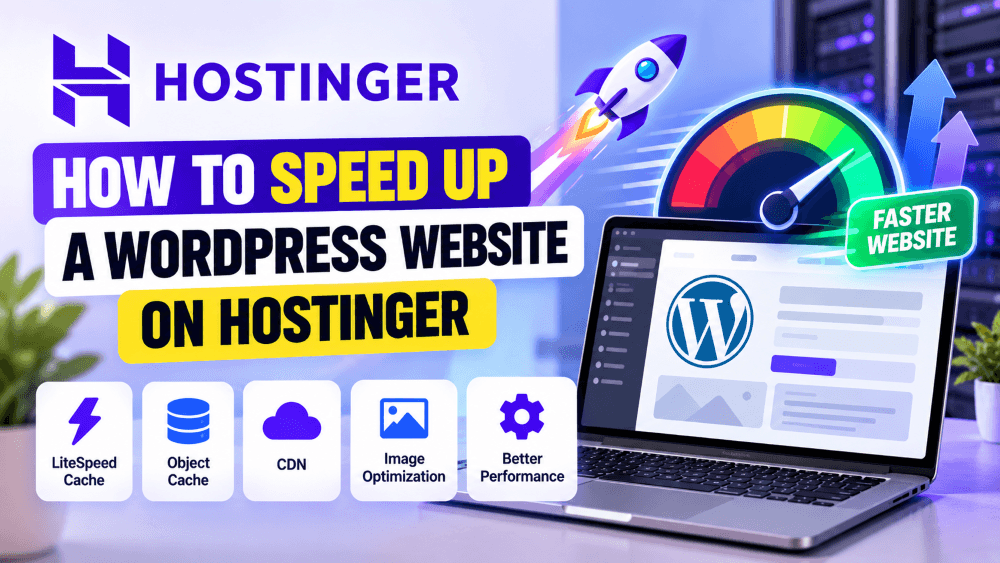
Before trying to speed up WordPress on Hostinger, it’s important to understand what you’re actually trying to improve.
Website speed isn’t simply about getting a 100/100 score in PageSpeed Insights. What matters more is how quickly the important content appears, how quickly the page responds when someone interacts with it, and whether the layout stays stable while loading.
Google’s Core Web Vitals currently focus on three important measurements: LCP, INP, and CLS.
For a good user experience, Google recommends an LCP of 2.5 seconds or less, an INP below 200 milliseconds, and a CLS score below 0.1.
These numbers are useful targets, but don’t treat them as the only measure of website quality.
Test Your Website Before Making Changes
The first step to speed up WordPress on Hostinger is to test the website before changing anything.
Use tools such as Google PageSpeed Insights, Google Search Console, Lighthouse, or GTmetrix.
Don’t test only the homepage.
Check your homepage, important service pages, popular blog posts, product pages, and landing pages. A website can have a fast homepage while a large blog post or ecommerce page performs poorly.
Also run the test more than once.
Caching can affect the first request, so a single test isn’t always representative of the experience your visitors receive. Hostinger itself recommends testing multiple times when evaluating LiteSpeed Cache settings.
Check Hostinger’s Current Hosting Plans
1. Make Sure LiteSpeed Is Enabled
One of the biggest advantages of using Hostinger for WordPress is its LiteSpeed-based hosting environment.
Hostinger says its current WordPress hosting uses LiteSpeed and includes WordPress optimization features such as LiteSpeed Cache and Object Cache on eligible plans.
If you’re trying to speed up WordPress on Hostinger, this should be one of the first things you check.
You can find the LiteSpeed option inside your Hostinger WordPress dashboard. Hostinger’s current documentation also provides optimization profiles that allow you to apply pre-configured LiteSpeed settings.
2. Use LiteSpeed Cache Properly
Hostinger currently provides the LiteSpeed Cache plugin pre-installed with its hosting accounts.
That means you generally don’t need to search for another caching plugin immediately after setting up WordPress.
LiteSpeed Cache can handle several optimization functions, including page caching, browser caching, CSS and JavaScript optimization, image optimization, and integration with CDN services.
The most important thing is to configure it carefully.
Hostinger currently provides three LiteSpeed optimization profiles:
- Basic
- Advanced
- Aggressive
Hostinger describes Advanced as the recommended profile for all website types, while Aggressive applies more advanced optimizations.
If you’re working on a production website, I wouldn’t immediately switch everything to the most aggressive settings.
Apply the settings, clear the cache, and test your website after each major change.
3. Enable Page Caching
Page caching is one of the easiest ways to speed up WordPress on Hostinger.
Without caching, WordPress may need to process PHP code and database queries every time a visitor requests a page.
With caching enabled, a previously generated version of the page can be served instead, reducing the amount of work required from the server.
Hostinger currently recommends keeping the main Enable Cache setting switched on in LiteSpeed Cache.
Caching is particularly useful for pages that don’t change every few seconds.
A blog post, service page, About page, or standard landing page can often benefit significantly from caching.
4. Don’t Use Multiple Cache Plugins
One of the easiest ways to create problems while trying to speed up WordPress on Hostinger is to install several caching plugins.
For example, you might already have LiteSpeed Cache and then install another plugin because someone recommended it in a YouTube video.
That can create conflicts.
Two different plugins may try to control the same caching, minification, JavaScript, CSS, or optimization functions.
Hostinger’s current Cache Manager documentation recommends using only one cache plugin at a time for WordPress.
If you’re using LiteSpeed Cache, configure it properly before installing another optimization plugin.
5. Enable Object Cache If Your Plan Supports It
Object Cache works differently from normal page caching.
Instead of storing an entire webpage, it stores frequently accessed database information in memory. This can reduce repeated database queries and help WordPress retrieve information more efficiently.
Hostinger currently offers LiteSpeed Memcached Object Cache on eligible plans. Its documentation says Object Cache reduces database load by storing frequently accessed information in memory.
You can check your Hostinger dashboard to see whether the feature is available for your plan.
This can be particularly useful for websites with more dynamic content, such as WooCommerce stores, membership websites, or larger WordPress websites.
6. Optimize Your Images
Large images are one of the most common reasons WordPress websites become slow.
You might have excellent hosting and caching, but a page containing several 2 MB images can still take a long time to load.
Before uploading an image, resize it to something close to the dimensions you actually need.
There’s little benefit in uploading a 5000-pixel-wide photograph when your website displays it at 1200 pixels.
Also consider modern formats such as WebP where appropriate.
Hostinger’s current LiteSpeed optimization tools include image optimization and resizing features.
7. Don’t Over-Optimize Images
Image compression is useful, but don’t reduce image quality to the point where your website looks unprofessional.
For a business website, product website, or photography portfolio, image quality still matters.
The goal is to find the balance between visual quality and file size.
A properly compressed 150–300 KB image can often look virtually identical to a much larger original image while requiring considerably less data to download.
8. Optimize Your Largest Image First
If you want to speed up WordPress on Hostinger, don’t spend all your time optimizing tiny images at the bottom of the page.
Start with the largest important element visible when the page loads.
This is often the hero image or main banner.
A huge hero image can directly affect Largest Contentful Paint, one of Google’s Core Web Vitals.
Make sure the image is correctly sized, compressed, and delivered efficiently.
At the same time, don’t blindly lazy-load the main LCP image. The browser needs to discover and load important above-the-fold content quickly.
9. Use a CDN
A Content Delivery Network can help deliver your website’s static resources from locations closer to your visitors.
This becomes particularly useful when your visitors are spread across different cities or countries.
Hostinger currently provides its own CDN on eligible plans. Its documentation says the CDN can cache website content and work together with LiteSpeed Cache.
If you’re using Hostinger CDN, remember that there can be multiple caching layers involved.
Your WordPress cache, Hostinger CDN, browser cache, and other services can all have different cached versions.
That’s why clearing the correct cache is important when making website changes.
10. Clear Your Cache After Major Changes
Sometimes your website isn’t actually slow or broken.
You’re simply looking at an old cached version.
Hostinger currently allows WordPress users to flush the cache from the WordPress section of the hosting dashboard.
You should consider clearing the relevant cache after making major changes to:
- CSS
- JavaScript
- Images
- Page layouts
- WordPress themes
- Important plugins
- CDN configuration
After clearing the cache, test the page again in an incognito window.
11. Remove Unnecessary WordPress Plugins
Plugins add functionality to WordPress, but every additional plugin can potentially add scripts, styles, database queries, or background processes.
That doesn’t mean you should avoid plugins.
Instead, remove plugins that you don’t actually need.
Go through your WordPress dashboard and look for plugins that are:
- No longer being used
- Replaced by another plugin
- Duplicating functionality
- Loading unnecessary scripts
- Abandoned or outdated
Keeping your plugin collection under control is one of the simplest ways to keep WordPress manageable.
12. Avoid Duplicate Optimization Plugins
This deserves separate attention because it’s very common.
You may have LiteSpeed Cache handling caching and optimization, another plugin handling image compression, a third plugin handling database cleanup, and another plugin trying to optimize JavaScript.
Some of these combinations can work.
But adding plugins without understanding what each one does can create conflicts.
Before installing a new optimization plugin, check whether LiteSpeed Cache or Hostinger already provides the same functionality.
This is especially important when trying to speed up WordPress on Hostinger, because Hostinger’s current ecosystem already includes several performance features.
13. Be Careful With Elementor
If you’re using Elementor, your page builder can have a noticeable effect on page weight.
This doesn’t mean Elementor is automatically slow.
The problem is usually how the builder is used.
A page containing dozens of nested containers, animations, sliders, widgets, background videos, popups, and third-party elements will generally require more browser processing than a simple page.
Try to keep your important pages reasonably clean.
Use animations when they add something to the design, rather than adding them simply because the option exists.
14. Reduce Heavy JavaScript
JavaScript allows your website to do useful things, but excessive JavaScript can delay interaction.
Look at the scripts being loaded by:
- Analytics
- Advertising
- Chat widgets
- Social media
- Popups
- Booking tools
- Forms
- Marketing automation
- Tracking platforms
You don’t necessarily need to remove these tools.
Instead, identify which ones are actually contributing to your business.
If three different tools are performing similar functions, consider whether you really need all three.
15. Optimize CSS
Your website’s CSS controls its visual appearance, but large amounts of unused CSS can increase the amount of work the browser has to perform.
LiteSpeed Cache provides CSS optimization options, including minification.
Minification removes unnecessary characters from files and can reduce their size.
However, CSS optimization can occasionally cause visual problems.
After changing CSS optimization settings, check:
- Homepage
- Mobile menu
- Buttons
- Forms
- Blog posts
- Header
- Footer
- Elementor sections
Don’t assume the website is working correctly just because the homepage looks fine.
16. Be Careful With JavaScript Delay
JavaScript delay can improve initial loading by postponing non-critical scripts.
But it can also break interactive elements.
For example, you might discover that:
- A popup no longer opens.
- A form doesn’t submit.
- A menu stops working.
- A tracking script doesn’t fire.
- An Elementor widget behaves incorrectly.
If you enable aggressive JavaScript optimization, test the website thoroughly.
The goal is to speed up WordPress on Hostinger without breaking the website that you’re trying to improve.
17. Optimize Your Fonts
Fonts are often overlooked.
If your website loads several font families and many different font weights, the browser has to download additional files.
For most business websites, one or two font families are usually enough.
You can also reduce unnecessary font weights.
For example, if you’re only using regular and bold text, there’s little reason to load ten different font variations.
18. Avoid Heavy Video Backgrounds
Video backgrounds can look impressive, but they can also create a significant performance cost.
This is particularly important on mobile devices.
If you have a large video playing automatically in the hero section, consider replacing it with a static image or a lightweight video preview.
You can still use video elsewhere on the website.
Just make sure the first thing visitors see isn’t forcing their browser to download and process a large video file before they can interact with the page.
19. Lazy Load Images Below the Fold
Visitors don’t need to download every image on a long webpage immediately.
Images further down the page can often be lazy-loaded so that they are requested closer to the point where the visitor needs them.
This reduces the amount of content the browser needs to process during the initial page load.
However, don’t blindly lazy-load everything.
Important above-the-fold images, especially your main LCP element, should generally be available as quickly as possible.
20. Reduce Third-Party Scripts
Third-party scripts are another common source of unnecessary page weight.
A marketing website may have:
- Google Analytics
- Google Tag Manager
- Meta Pixel
- WhatsApp widget
- Facebook widgets
- Chat software
- Heatmap tools
- YouTube embeds
- Advertising scripts
Some of these are important.
But every script adds work for the browser.
Review your website periodically and remove tracking or marketing tools that you’re no longer using.
This can be particularly helpful for websites that have accumulated plugins and marketing integrations over several years.
21. Optimize YouTube Embeds
YouTube videos are useful for blogs and landing pages, but a normal embedded YouTube player can load a significant amount of additional code.
If you’re using several videos on one page, consider using a thumbnail or lightweight video-loading technique that loads the actual player only when the visitor interacts with it.
This is particularly useful for long-form blog posts containing multiple video embeds.
22. Keep WordPress and Plugins Updated
Keeping WordPress updated is important for security and compatibility, but updates can also contain performance improvements.
Keep your:
- WordPress core
- Plugins
- Theme
- WooCommerce
- PHP version
reasonably up to date.
Before major updates, make sure you have a working backup.
If you use managed WordPress hosting, some updates and WordPress management features may be handled through the hosting environment. Hostinger currently promotes automated WordPress updates and related management tools on its WordPress hosting products.
23. Use a Supported PHP Version
WordPress runs on PHP, so the PHP version used by your hosting environment can affect both compatibility and performance.
Using a very old PHP version isn’t a good long-term strategy.
At the same time, don’t switch to the newest available version on a production website without checking whether your theme and plugins support it.
Make the change carefully and test the website afterward.
24. Clean Up Your WordPress Database
As a website grows, the WordPress database can accumulate unnecessary information.
This may include:
- Old post revisions
- Auto drafts
- Spam comments
- Trashed content
- Expired transients
- Unused metadata
Database cleanup can help keep a large WordPress installation manageable.
But don’t blindly delete database tables or run aggressive cleanup tools.
Always create a backup first, especially if you’re running WooCommerce, membership functionality, or other database-heavy plugins.
25. Check Your Hosting Resource Usage
If you’ve optimized your website but it still becomes slow during busy periods, check your hosting resource usage.
The problem may not be your images or CSS.
Your website could simply be reaching the limits of its current hosting environment.
Look for signs such as:
- High CPU usage
- Memory limitations
- Slow database queries
- Resource spikes
- PHP worker limitations
- Traffic-related slowdowns
If your website consistently reaches its limits, upgrading the hosting environment may make more sense than continuing to optimize individual files.
If you’re considering the different hosting levels, our Hostinger pricing 2026 guide explains the current plans and renewal costs.
26. Don’t Upgrade to VPS Too Quickly
A VPS can provide more resources and control, but it isn’t automatically the solution to a slow WordPress website.
First identify why the website is slow.
If the problem is a 5 MB hero image, moving to a VPS won’t fix the underlying issue.
If the problem is excessive plugins, upgrading hosting doesn’t eliminate those plugins.
If the website is genuinely reaching its resource limits, however, a more powerful hosting environment may help.
Our Hostinger VPS vs shared hosting guide explains when moving to VPS makes sense and when shared hosting is still sufficient.
27. Consider Cloud Hosting for a Growing Website
If your website has outgrown normal shared hosting but you don’t necessarily want to manage a VPS yourself, cloud hosting can be another option.
Hostinger’s current cloud hosting environment includes features such as LiteSpeed, CDN, ObjectCache, NVMe storage, and managed WordPress tools.
This can be relevant for growing ecommerce stores, agencies, and websites experiencing higher traffic.
We’ve covered the subject in more detail in our Hostinger cloud hosting review.
28. Don’t Forget About Renewal Costs
Performance isn’t the only thing to consider when choosing hosting.
Your hosting plan is part of your website’s long-term operating cost.
Promotional hosting prices can be considerably lower than renewal prices, so check the cost before committing to a plan.
Our Hostinger renewal price guide explains what happens when the initial promotional period ends and how the renewal costs compare between plans.
This is especially important for businesses that expect to keep their website online for several years.
29. Check Your Website on Mobile
A website can look extremely fast on your desktop computer and still perform poorly on a mobile phone.
Test important pages using mobile performance testing.
Pay attention to:
- Hero image loading
- Menu responsiveness
- Button interaction
- Font loading
- Layout shifts
- Popups
- Forms
- Sticky elements
Mobile users may also have slower network connections and less powerful devices than your development computer.
So don’t optimize only for your own desktop browser.
30. Don’t Chase a Perfect PageSpeed Score
This is perhaps the most important point.
You can spend hours trying to move a PageSpeed score from 92 to 98 while your actual website visitors notice almost no difference.
At the same time, fixing a huge hero image, removing unnecessary scripts, or improving caching can make a meaningful difference even if the score doesn’t reach 100.
Google’s Core Web Vitals are useful because they focus on real aspects of user experience, but Google doesn’t say that achieving a perfect score guarantees better rankings.
Focus on a fast, stable, usable website first.
How to Speed Up WordPress on Hostinger: Recommended Setup
For a typical WordPress website hosted on Hostinger, I’d start with a relatively simple setup.
Hosting
Choose a Hostinger plan appropriate for your traffic and resource requirements.
Don’t upgrade to VPS just because it has more RAM and CPU.
Caching
Use LiteSpeed Cache and enable page caching.
Hostinger currently provides LiteSpeed Cache with its hosting environment and provides optimization profiles for easier configuration.
Object Cache
If your plan supports Object Cache, enable it.
This can reduce repeated database queries and is particularly useful for more dynamic websites.
Images
Resize, compress, and properly format your images.
Pay particular attention to the main hero image because it can affect LCP.
CDN
Use Hostinger CDN if it’s available on your plan and useful for your visitors.
Remember that CDN caching and WordPress caching are separate layers, so purge the appropriate cache when making changes.
Plugins
Keep only the plugins you actually need.
Avoid multiple plugins that perform the same optimization function.
Elementor
Keep your layouts reasonably simple.
Avoid unnecessary animations, widgets, sliders, and video backgrounds.
JavaScript
Minify and optimize JavaScript carefully.
Test menus, forms, popups, tracking, and other interactive features after making changes.
Database
Clean unnecessary database data periodically, but always keep a backup before making major database changes.
How to Speed Up WordPress on Hostinger Without Breaking Your Website
The biggest mistake is changing everything at once.
If you enable aggressive caching, JavaScript delay, CSS optimization, image compression, CDN caching, database cleanup, and several other settings simultaneously, you won’t know which change caused a problem.
Instead, use this process:
Test → Change → Clear Cache → Test Again.
Start with caching.
Then optimize your images.
Then check Object Cache.
Then look at your CDN.
After that, investigate plugins, JavaScript, CSS, fonts, and third-party scripts.
This makes troubleshooting much easier.
Hostinger’s current LiteSpeed documentation also provides a configuration change log and allows you to restore previous optimization settings if needed.
A Simple WordPress Speed Checklist
If you want to speed up WordPress on Hostinger without spending an entire day on optimization, start with this checklist:
- Test the website with PageSpeed Insights.
- Check Core Web Vitals in Search Console.
- Confirm LiteSpeed is enabled.
- Configure LiteSpeed Cache.
- Enable Object Cache if available.
- Compress large images.
- Use WebP where appropriate.
- Enable CDN if available.
- Remove unnecessary plugins.
- Avoid duplicate optimization plugins.
- Optimize the main hero image.
- Reduce unnecessary JavaScript.
- Limit font families and weights.
- Reduce heavy animations.
- Avoid unnecessary video backgrounds.
- Keep WordPress and plugins updated.
- Check PHP compatibility.
- Clean unnecessary database data.
- Review hosting resource usage.
- Test the website on mobile.
You don’t need to do all of these at the same time.
Start with the biggest problems shown in your performance report and work through them one by one.
Frequently Asked Questions
How do I speed up WordPress on Hostinger?
Start with LiteSpeed Cache, page caching, image optimization, Object Cache if available, CDN, plugin cleanup, and careful CSS and JavaScript optimization. Then test the website again rather than assuming the changes worked.
Does Hostinger use LiteSpeed for WordPress?
Yes. Hostinger currently uses LiteSpeed technology for its WordPress hosting environment and provides LiteSpeed Cache optimization features.
Is LiteSpeed Cache free?
The LiteSpeed Cache WordPress plugin is available without a separate plugin license, and Hostinger currently provides it pre-installed with its hosting accounts.
Should I use another caching plugin with LiteSpeed Cache?
Generally, no. Hostinger’s current documentation recommends using only one cache plugin at a time for WordPress to avoid conflicts.
Does Object Cache make WordPress faster?
Object Cache can reduce repeated database queries by storing frequently accessed information in memory. Hostinger provides the feature on eligible hosting plans.
Does Hostinger have a CDN?
Yes. Hostinger currently provides CDN functionality on eligible plans, and its CDN can work alongside LiteSpeed Cache.
Should I upgrade my Hostinger plan if my WordPress website is slow?
Not immediately. First identify whether the problem comes from images, plugins, caching, scripts, or other website-level issues. If your website is consistently reaching its hosting resource limits, then upgrading may be appropriate.
Will VPS automatically make my WordPress website faster?
Not necessarily. A VPS provides more resources and control, but it won’t automatically fix poorly optimized images, plugins, themes, JavaScript, or database queries.
What is a good Core Web Vitals score?
Google recommends LCP of 2.5 seconds or less, INP below 200 milliseconds, and CLS below 0.1 for a good user experience.
Does a 100 PageSpeed score guarantee better Google rankings?
No. PageSpeed and Core Web Vitals are useful indicators of performance and user experience, but Google does not say that a perfect score guarantees higher rankings.
Final Thoughts
You don’t need to rebuild your entire website to make WordPress faster.
In many cases, the biggest improvements come from a few fundamentals: proper caching, optimized images, fewer unnecessary plugins, sensible JavaScript and CSS settings, CDN delivery, and keeping WordPress itself properly maintained.
Hostinger already provides several tools that can help, including LiteSpeed Cache, Object Cache on eligible plans, and CDN functionality.
The important part is using those tools correctly.
If you’ve optimized the website and you’re still consistently hitting hosting resource limits, then it’s worth looking at a higher hosting tier.
Otherwise, don’t pay for more server resources when the real problem is an oversized image or a badly configured plugin.
Test first, optimize the biggest problems, and measure the result.
Check Hostinger’s Current Plans
If your WordPress website is still struggling after optimization, you can compare Hostinger’s current hosting plans and available resources.
Check Hostinger’s Current Hosting Plans

Author Profile
Digital marketer and founder of SuperBuzz Media, with hands-on experience in performance marketing, lead generation, WordPress, AI automation, and digital marketing tools. I share practical insights, real-world experiences, and tool reviews to help businesses make smarter digital decisions.